


Merchandising Assets
Print Ready File Templates: Use these resources as a starting point to set up print ready files. Templates files are available for our most common and popular products/sizes. Template files are set up at 300DPI* for ease of use, but Sensaria can accept any DPI between 32-300.
Printer Profile: We recommend for ICC profiles to be embedded in the image file. Adobe RGB (1998) is best suited for artwork while sRGB IEC61966-2.1 is best suited for photography. In the absence of an ICC profile, U.S. Web Coated (SWOP) v2 and sRGB IEC61966-2.1 will be referenced. If soft proofing, we recommend SWOP and sRGB for previewing.
Although JPEGs can be submitted in CMYK, we highly recommend saving JPEGs in the RGB color space or mode for best results. All files will be assessed in the sRGB IEC61966-2.1 color space. If a JPEG is submitted in another color space, the RGB color profile for the image will be referenced.
Photos: A variety of detail shots for any given product that can used to illustrate specific features of a product.
PSD Mockups: PSD mockup files created by Sensaria using our actual printed products. Use these files to create product shots with your own imagery on the product.
PNG Mockups: PNG files built with transparency in the image area that allow you to easily drop in your own imagery to create your own product photos. These files are provided at 400px x 400px resolution.
Recommended Resources: 3rd party creative assets that we would recommend as a resource to help you set up product shots that closely match our print products.
Tips: Instructions on setting up your own product shots from scratch in Photoshop.
- Acrylic Prints
- Aprons (UK)
- Banners
- Blankets
- Bottles & Drinkware
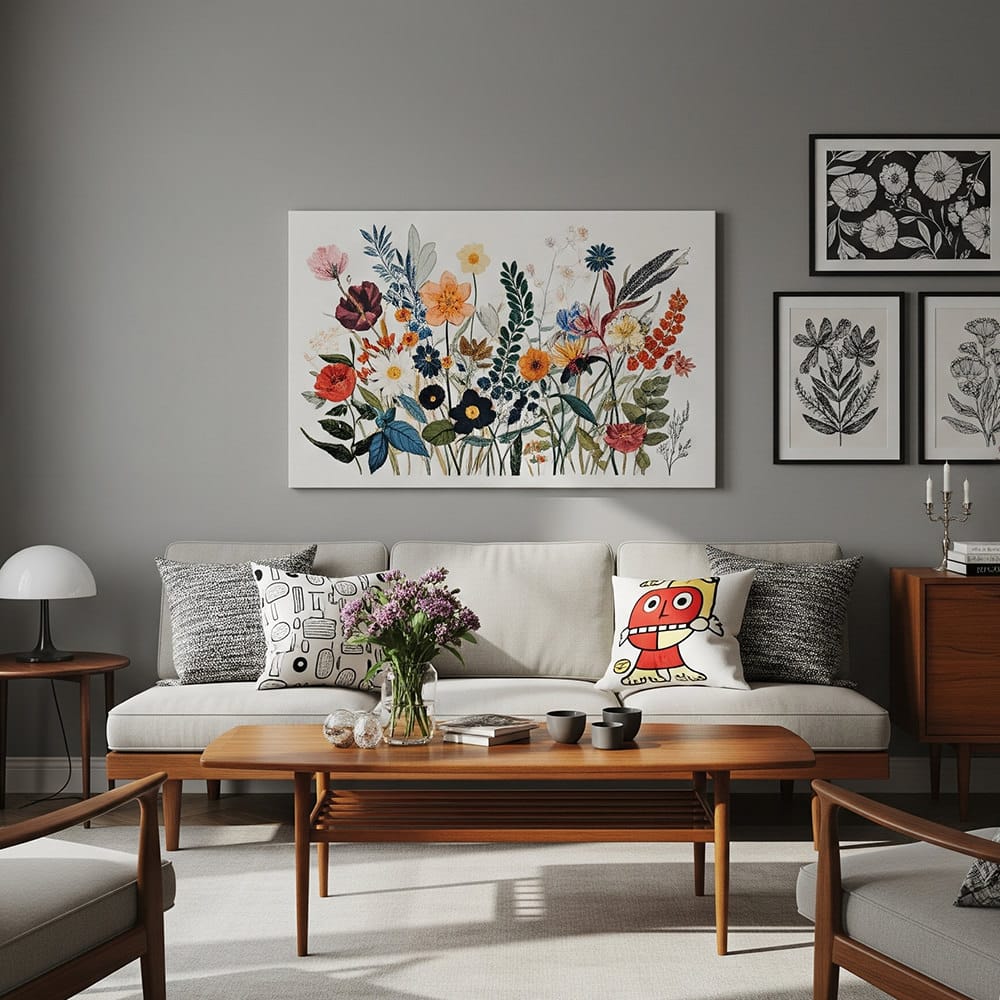
- Canvas Prints
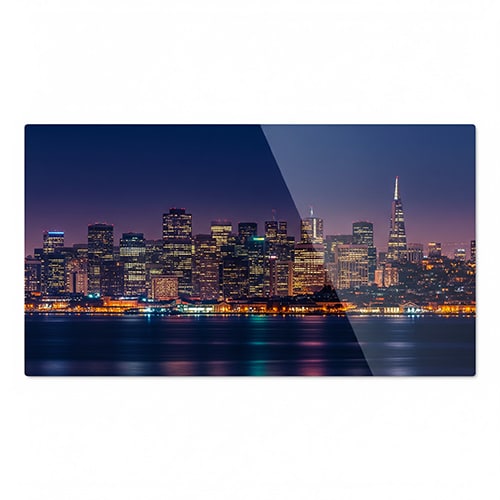
- Glass Cutting Board (UK)
- Hanging Canvas
- Hot Water Bottle (UK)
- Makeup/Wash Bags (UK)
- Metal Prints
- Notebooks
- Paper/Poster Prints
- Peel & Stick Prints
- Pet Bandanas
- Pillows
- Product Packaging
- Rally Signs
- Tea Towels (UK)
- Tote Bags (UK)
- Towels (UK)
- Yard Signs
Acrylic prints have an added 0.06667 inch bleed in the print file.
Photos can be downloaded here.
PNG mockups can be downloaded here. To use, simply drop your desired product image underneath the template layer. Then resize your product image to fit within the transparent image area of the template layer.
The following PSD mockup files are recommended:
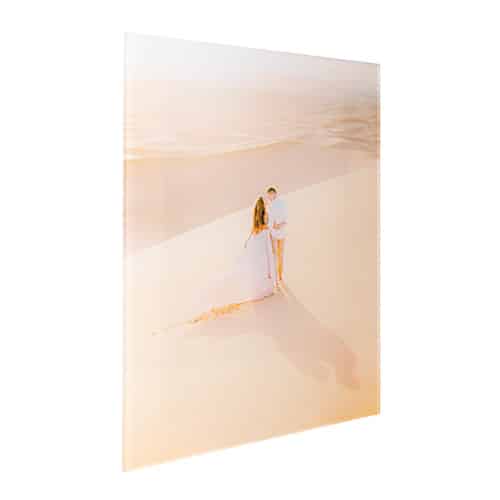
Acrylic prints can be visually indicated in product photos by a sheen effect on the surface of the print due to the reflective nature of the surface. To simulate this effect, follow these instructions in Photoshop:
- Import your desired product image into your product photo image document.
- Add a layer of white on top of the product image to cover the whole image.
- Using masking tools set to varying opacities of less than 100%, slowly mask away parts of the white overlay to reveal the product image underneath. You should do this in a consistent diagonal direction.
- Keep masking the white overlay until only slight streaks remain that look like a sheen effect on top of the product image.
- Your product image is now complete and ready for export.
Note: This is a regional product exclusively made by our United Kingdom facility.
Photos can be downloaded here.
PSD mockups created for your use can be downloaded here.
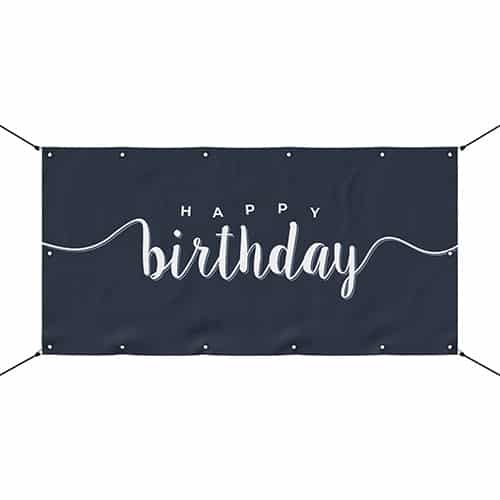
- Banners finished with grommets have an added 1 inch bleed (13 oz version) or 1.5 inch bleed (9 oz and 10 oz versions) around all sides that is used for the fold and sewing.
- Keep critical content within guides.
- Banner template files are set up at 150DPI*.
Photos can be downloaded here.
PNG mockups can be downloaded here. To use, simply drop your desired product image underneath the template layer. Then resize your product image to fit within the transparent image area of the template layer.
The following PSD mockup files are recommended:
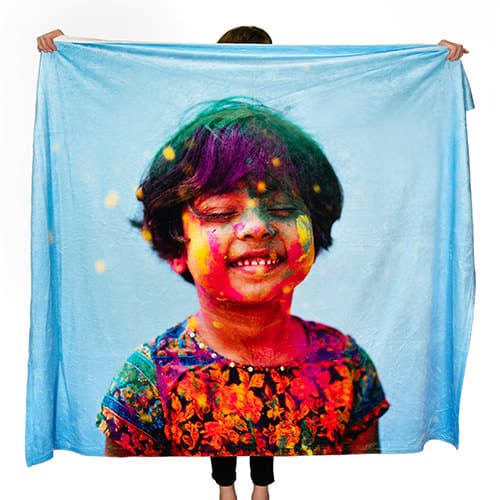
- Blankets have an added 1.25 inch bleed in the print file that allows for extra material on the blanket for sewing.
- Keep critical content within guides.
- Fleece blankets have straight corners, and sherpa blankets have rounded corners.
- Blanket template files are set up at 150DPI*.
Photos can be downloaded here.
PSD mockups created for your use can be downloaded here.
PNG mockups can be downloaded here. To use, simply drop your desired product image underneath the template layer. Then resize your product image to fit within the transparent image area of the template layer.
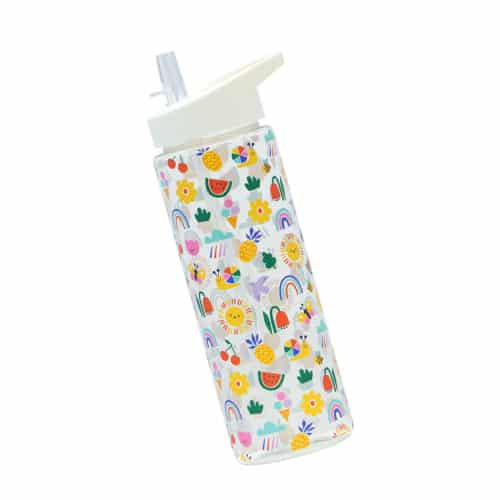
- Bottles & drinkware feature 360 degree wrap around printing.
- To preserve transparency during printing (i.e. for plastic water bottles), save your files in PNG format.
- Keep critical content within guides.
Photos can be downloaded here.
PNG mockups can be downloaded here. To use, simply drop your desired product image underneath the template layer. Then resize your product image to fit within the transparent image area of the template layer.
- Canvas prints with a 0.75 inch stretcher bar have an added 1 inch bleed that is used for the wrap.
- Canvas prints with a 1.25 inch stretcher bar have an added 1.5 inch bleed that is used for the wrap.
- On Sensaria GO, the bleed for mirror and color wraps is added by the system so it can be excluded from the print file. Include the bleed in the print file for full image wraps.
Stretched Canvas photos can be downloaded here.
Framed Canvas photos can be downloaded here.
PNG mockups can be downloaded here. To use, simply drop your desired product image underneath the template layer. Then resize your product image to fit within the transparent image area of the template layer.
The following PSD mockup files are recommended:
To create simulated unframed canvas prints product shots, follow these instructions in Photoshop.
- Import your desired product image into your product photo image document.
- Duplicate the product image layer.
- Crop the duplicated layer to just a small section of the left side while retaining the full height. Position this layer up against the left side of the original product image layer. Then add an 18% black fill to the duplicated layer. This duplicated layer will be used to create the “side” of the canvas.
- Distort the top right and bottom right corners of the original image layer to create perspective so that it appears as though you are viewing the product at an angle.
- Distort the top left and bottom left corners of the “side” image layer to complete the perspective effect. You may need to play with the layers a little bit to achieve a realistic perspective view of the product.
- Create a new tall white rectangle layer at 30% opacity that is the same height as the tall side of the 2 image layers and 2px to 4px wide depending on the size of your product photo image document. Feather the edges of this rectangle so that it is soft all around. Place this rectangle at the intersection of the 2 underlying image layers to simulate a sheen effect on the edge of the product where they meet.
- Your product image is now complete and ready for export.
Note: This is a regional product exclusively made by our United Kingdom facility.
Photos can be downloaded here.
PSD mockups created for your use can be downloaded here.
Hanging canvas prints do not have a bleed, and our No Bleed print ready file templates can be used for this product category.
Photos can be downloaded here.
PNG mockups can be downloaded here. To use, simply drop your desired product image underneath the template layer. Then resize your product image to fit within the transparent image area of the template layer.
Note: This is a regional product exclusively made by our United Kingdom facility.
Photos can be downloaded here.
PSD mockups created for your use can be downloaded here.
Note: This is a regional product exclusively made by our United Kingdom facility.
Photos can be downloaded here.
PSD mockups created for your use can be downloaded here.
- Matte (direct print) metal prints have an added 0.06667 inch bleed in the print file.
- Gloss (dye-sublimation) metal prints do not have a bleed, and our No Bleed print ready file templates can be used for this product category.
Photos can be downloaded here.
PNG mockups can be downloaded here. To use, simply drop your desired product image underneath the template layer. Then resize your product image to fit within the transparent image area of the template layer.
The following PSD mockup files are recommended:
Metal prints can be visually indicated in product photos by a sheen effect on the surface of the print due to the semi-reflective nature of the surface. To simulate this effect, follow these instructions in Photoshop:
- Import your desired product image into your product photo image document.
- Add a layer of white on top of the product image to cover the whole image.
- Using masking tools set to varying opacities of less than 100%, slowly mask away parts of the white overlay to reveal the product image underneath. You should do this in a consistent diagonal direction.
- Keep masking the white overlay until only slight streaks remain that look like a sheen effect on top of the product image.
- Your product image is now complete and ready for export.
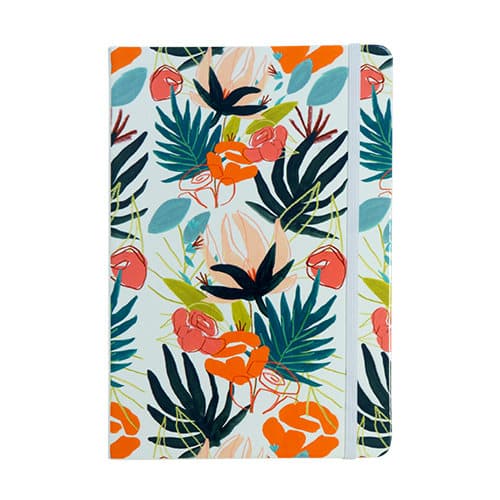
- Notebook artwork will be used for the front cover only.
- Keep critical content within guides.
Photos can be downloaded here.
PNG mockups can be downloaded here. To use, simply drop your desired product image underneath the template layer. Then resize your product image to fit within the transparent image area of the template layer.
Paper/poster prints do not have a bleed, and our No Bleed print ready file templates can be used for this product category.
Download (Framed Poster Prints).
PNG mockups can be downloaded here. To use, simply drop your desired product image underneath the template layer. Then resize your product image to fit within the transparent image area of the template layer.
The following PSD mockup files are recommended:
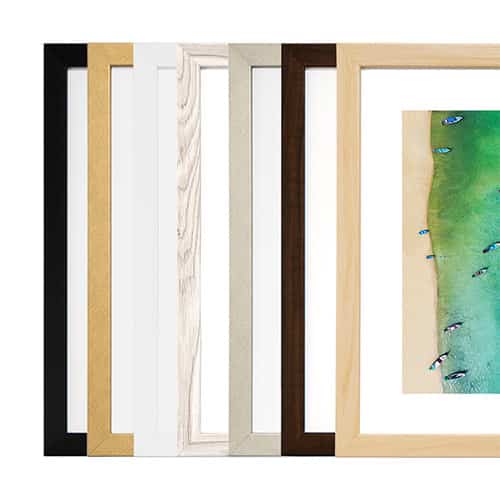
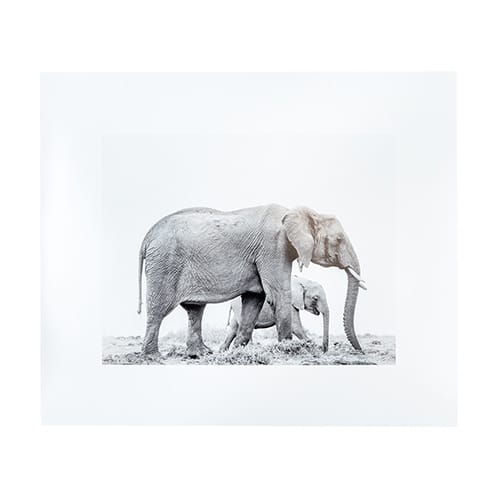
Unframed paper prints can be mocked up as a product photo by adding a slight drop shadow to an image placed atop a light background. Black or white mats can be created simply by adding a black or white layer under the image to simulate the border. The size of the border depends on the desired product image size and the size of the border (1”, 2”, etc.).
Peel & stick prints do not have a bleed, and our No Bleed print ready file templates can be used for this product category.
Photos can be downloaded here.
PNG mockups can be downloaded here. To use, simply drop your desired product image underneath the template layer. Then resize your product image to fit within the transparent image area of the template layer.
The following PSD mockup files are recommended:
Use a page peel graphic such as the one listed as a recommended resource to mock up a product image with a peel effect.
- Pet bandanas have an added 0.25 inch bleed in the print file that allows for extra material on the pet bandana for sewing.
- Keep critical content within guides.
Photos can be downloaded here.
PSD mockups created for your use can be downloaded here.
PNG mockups can be downloaded here. To use, simply drop your desired product image underneath the template layer. Then resize your product image to fit within the transparent image area of the template layer.
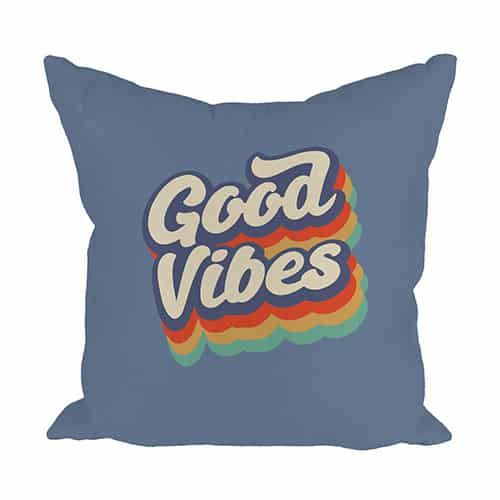
- Pillows have an added 0.25 inch bleed in the print file that allows for extra material on the pillow for sewing.
- Keep critical content within guides.
- On Sensaria GO, double sided pillows use separate images for the front and back sides. In this case, the single sided templates can be used to create the front/back images./li>
Photos can be downloaded here.
PNG mockups can be downloaded here. To use, simply drop your desired product image underneath the template layer. Then resize your product image to fit within the transparent image area of the template layer.
The following PSD mockup files are recommended:
Photos can be downloaded here.
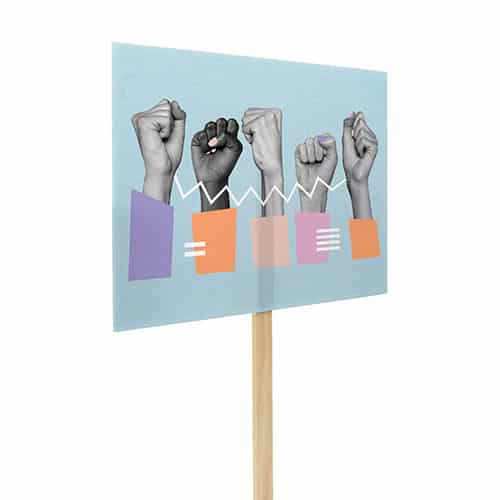
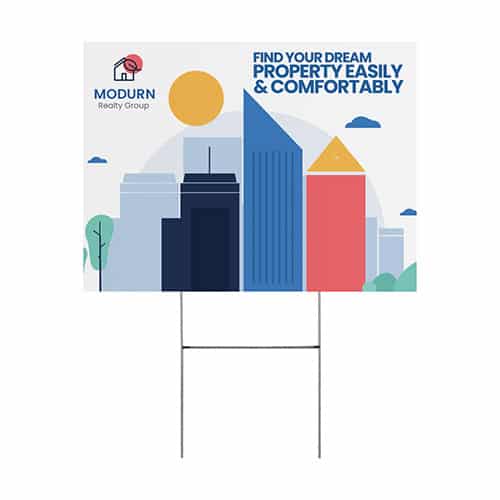
- Rally signs and yard signs share the same template. Both have an added 0.06667 inch bleed in the print file.
- Only available in landscape orientation.
Photos can be downloaded here.
PSD mockups created for your use can be downloaded here.
PNG mockups can be downloaded here. To use, simply drop your desired product image underneath the template layer. Then resize your product image to fit within the transparent image area of the template layer.
Note: This is a regional product exclusively made by our United Kingdom facility.
Photos can be downloaded here.
PSD mockups created for your use can be downloaded here.
Note: This is a regional product exclusively made by our United Kingdom facility.
Photos can be downloaded here.
PSD mockups created for your use can be downloaded here.
Note: This is a regional product exclusively made by our United Kingdom facility.
Photos can be downloaded here.
PSD mockups created for your use can be downloaded here.
- Protest signs and yard signs share the same template. Both have an added 0.06667 inch bleed in the print file.
- Only available in landscape orientation.
PNG mockups can be downloaded here. To use, simply drop your desired product image underneath the template layer. Then resize your product image to fit within the transparent image area of the template layer.